certSIGN confirmă interoperabilitatea soluției sale și în cadrul testelor ETSI Plugtests™ 2026

În ecosistemul european al identității digitale, standardele reprezintă doar punctul de plecare. Adevărata validare apare atunci când soluțiile dezvoltate de organizații diferite, din țări diferite, funcționează împreună în condiții reale, folosind implementări independente.

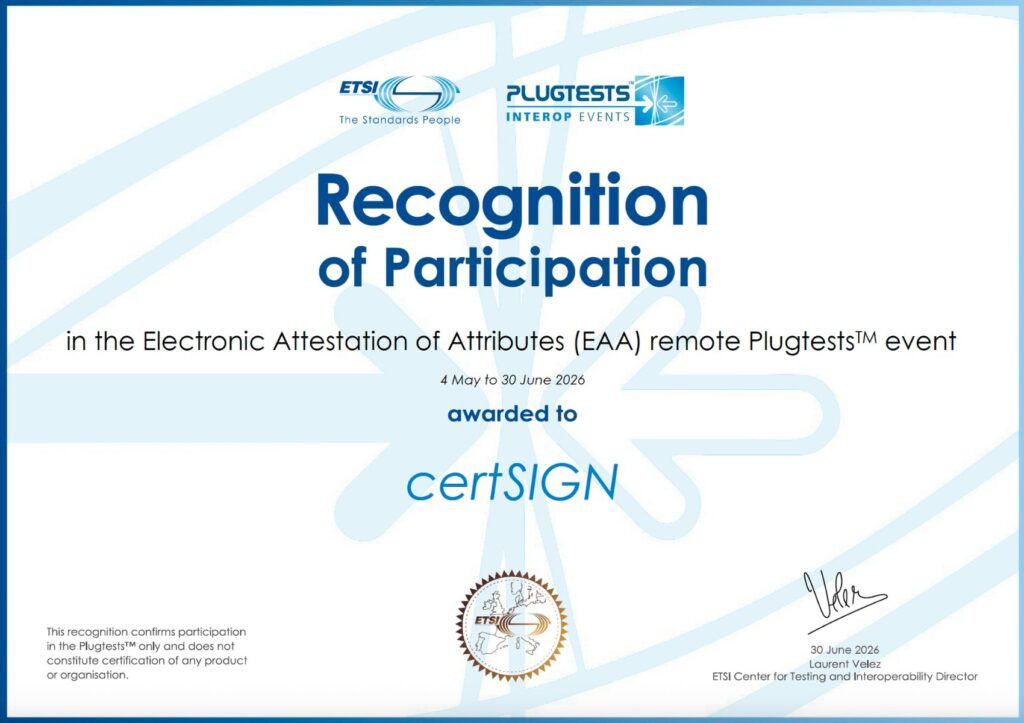
În perioada 4 mai – 30 iunie 2026, ETSI Centre for Testing and Interoperability a organizat Electronic Attestation of Attributes (EAA) remote Plugtests™ 2026, un amplu exercițiu european de interoperabilitate dedicat testării conformității cu standardul ETSI TS 119 472-1 – Electronic Signatures and Trust Infrastructures (ESI); Profiles for Electronic Attestation of Attributes, unul dintre standardele esențiale pentru dezvoltarea viitorului European Digital Identity Wallet (EUDI Wallet), la care a participat și certSIGN. Evenimentul a reunit 28 de participanți din țări cu un rol important în dezvoltarea ecosistemului european, precum Germania, Italia și Franța.

Participanții au emis și validat atestate electronice ale atributelor în formatele SD-JWT și mdoc (ISO 18013-5), cuprinzând atestări de tipul EAA, QEAA și PubEAA, în peste 50 de scenarii complexe de testare pentru fiecare organizație. Au fost evaluate atât scenarii care conțineau sau nu atribute destinate Selective Disclosure, cât și combinații de atribute obligatorii și opționale, pentru a verifica implementările într-o gamă cât mai variată de situații.

Unul dintre cele mai valoroase aspecte ale acestui exercițiu a fost caracterul său colaborativ: atestate electronice ale atributelor emise de un participant au fost validate folosind instrumentele dezvoltate de ceilalți participanți. În plus, rezultatele au fost disponibile aproape în timp real printr-o matrice comună de conformitate, oferind tuturor posibilitatea de a identifica rapid eventualele neconformități și de a-și îmbunătăți implementările pe parcursul testelor.

Rezultatele certSIGN

certSIGN a participat cu succes la acest exercițiu cu soluția proprie EUDI Wallet Sandbox, demonstrând conformitatea implementării sale pentru emiterea de atestate electronice ale atributelor (QEAA, PubEAA și EAA).

Rezultatele confirmă maturitatea și interoperabilitatea soluției:

  • participare în 27 de scenarii de testare;
  • toate atestatelele electronice ale atributelor emise au fost validate de cel puțin un partener independent înainte de închiderea testelor;
  • 7 scenarii au fost validate de cel puțin doi parteneri independenți;
  • 8 credențiale emise de certSIGN au fost validate de minimum cinci parteneri independenți.
În domeniul identității digitale, interoperabilitatea nu poate fi demonstrată doar prin respectarea unui standard pe hârtie. Ea trebuie confirmată prin teste independente, în colaborare cu ceilalți actori ai ecosistemului. Tocmai de aceea, participarea la astfel de exerciții reprezintă una dintre cele mai solide dovezi că o soluție este pregătită pentru integrare și utilizare la nivel european.

Sandbox-ul certSIGNeste o infrastructură completă și funcțională care include emiterea identității digitale, emiterea și verificarea atestatelor electronice ale atributelor, autentificare avansată și semnătură electronică calificată, în conformitate cu Regulamentul eIDAS actualizat, care și-a demonstrat deja interoperabilitatea în cadrul mai multor inițiative europene dedicate identității digitale.

Like this article?

Share on Facebook
Share on Twitter
Share on LinkedIn
Share on Pinterest

Needing more informations?

Citește recomandările noastre legate de subiectul selectat. Dacă nu ai găsit ce căutai, solicită informații suplimentare. 

    Detalii OS

    WindowsMac

    TokenCloud

    Detalii Semnatura

    Fill in the telephone number at which the certificate holder can be contacted.

    Fill in the email address for which the certificate for which you are requesting support was issued.

    Attach documents

    *Accepted file types: pdf, jpg and png. Maximum size: 5mb

    Describe the situation in as much detail as possible. Minimum 50 characters.

    Fields marked with * are required

    Detalii Politica si Newsletter

    This site is protected by reCAPTCHA and the Google Privacy Policy and Terms of Service apply.

    READ the information presented in relation to the topic you are interested in or SEARCH the information you need on the website.

    Details related to the electronic signature are available on the page with Answers to the most frequently asked questions of customers.

    Quickly, useful information can be found about obtaining the confirmation document, costs, online purchase, video identification, renewal, installation and use:

    When you receive the invoice, after purchasing a digital certificate for electronic signature
    Numerous details are presented related to:

    To use the certSIGN certificate for electronic signature in the Virtual Private Space (SPV) platform, we recommend following the instructions provided by ANAF for registration in the SPV.

    To access the Virtual Private Space (VPS), the qualified certificate issued by certSIGN must be registered with the VPS by completing the requested information in the ANAF-SPV platform and uploading the requested documents, including the confirmation document countersigned by certSIGN at the address: https://www.anaf.ro/InregPersFizicePublic/#tabs-2 .

    To obtain the confirmation document, follow one of these tutorials , depending on the type of signature you have:

    The electronic signature is performed using a qualified digital certificate stored in the CLOUD, and to use the certificate in the CLOUD , the usage mechanism must first be configured.

    After the video identification session has been accepted, the configurations prior to issuing the certificate can be performed, going through them in this order, stages:

    Configure the signature authorization mechanism according to the instructions in the email “paperLESS : Configure authorization mechanism”:

    • Check the email address declared when purchasing the certificate and follow the instructions received;
    • Install one of the free authorization apps Microsoft Authenticator or Google Authenticator on your phone , from Google Play or the App Store;
    • Associates the signature authorization application with the holder’s cloud account;

    Activate the cloud account according to the instructions in the “paperLESS email webSIGN : Account creation invitation

    • Check the email address declared when purchasing the certificate and follow the instructions received;
    • Complete and validate the phone number associated with the account on the cloud platform ;
    • Set the cloud account password .

    Issuance of the certificate it is done when you first log in to your cloud account. On the page that opens Enter the authorization code generated by the application on your phone.

    Placing an order to extend the validity of the certificate ensures: low costs, simple and fast process, 100% online, procedure under the exclusive control of the holder, retention of the current device (TOKEN) and retention of the PIN.

    • The only condition that must be met to extend the validity of the signature certificate is that the current certificate is within the validity period at the time of placing the extension order. To place the extension order, authentication in the certSIGN platform is required startrekey.certsign.ro, and authentication can only be done based on the current certificate.

    If the current certificate has expired, Renewal is no longer possible and a new electronic signature certificate must be purchased. We recommend accessing the certSIGN platform to purchase qualified TOKEN certificates and following the indicated steps.

    certSIGN sends, to the email address in the certificate, the procedure for renewing the certificate 45 days before the expiration of the current certificate. If the procedure has not yet been followed, with 15 days before the certificate expires, certSIGN resends the renewal information email. Late submission of the request does not guarantee online renewal of the certificate.

    Placing an order to extend the validity of the certificate ensures: low costs, simple and fast process, 100% online, procedure under the exclusive control of the holder, keeping the current webSIGN account and maintaining the authentication method.

    The only condition that must be met for the online extension of the validity of the signature certificate (renewal) is that the current certificate must be within the validity period at the time of placing the extension order. The extension order is placed directly from the certSIGN websign.ro platform .

    If the current certificate has expired, Renewal is no longer possible and a new certificate for electronic signature in CLOUD must be purchased. We recommend accessing the certSIGN platform for purchasing qualified certificates in the CLOUD and following the indicated steps.

    certSIGN sends, to the email address in the certificate, the procedure for renewing the certificate 45 days before the expiration of the current certificate. If the procedure has not yet been followed, with 15 days before the certificate expires, certSIGN resends the renewal information email. Late submission of the application does not guarantee online renewal of the certificate.

    webSIGN signing platform, during the 45 days before the expiration of the current certificate, a banner will be displayed with information regarding the deadline for certificate renewal. This banner will disappear after submitting the renewal request.

    Log in to the websign.ro platform and renew the certificate in the CLOUD:

    • Start the process from the information displayed;
    • Choose the validity period for the new certificate: 1, 2 or 3 years;
    • Read the information on the page and check the agreement;
    • Pay online for the selected product;
    • Fill in the required data in the next step;
    • Upload and send a copy of your ID;
    • Click the Register buttonaccept the General Terms and Conditions;
    • Sign the request for the new certificate using the authorization code from the authorization application installed on your phone .

    The certificate request generation stage is completed when the message “Request submitted for approval” is displayed in the cloud platform.

    After validating the request, 3 days before the current certificate expires, certSIGN will automatically issue the new certificate. Regardless of the date the extension order is placed, the validity period of the new certificate will begin 3 days before the current certificate expires. After the new certificate is issued, the webSIGN platform can continue to be used for signing documents in the cloud , for the entire duration of the new validity period.

    Placing an order to extend the validity of the certificate ensures: low costs, simple and fast process, 100% online, procedure under the exclusive control of the holder, keeping the current webSIGN account and maintaining the authentication method.

    The only condition that must be met for the extension of the validity of the signature certificate (renewal) is that the current certificate must be within the validity period at the time of placing the extension order. The extension order is placed directly from the certSIGN websign.ro platform .

    If the current certificate has expired, Renewal can no longer be made and a new certificate for electronic signature in CLOUD is required. We recommend accessing the certSIGN platform to purchase qualified certificates in CLOUD and following the indicated steps.

    certSIGN sends, to the email address in the certificate, the procedure for renewing the certificate 45 days before the expiration of the current certificate. If the procedure has not yet been followed, with 15 days before the certificate expires, certSIGN resends the renewal information email. Late submission of the request does not guarantee online renewal of the certificate.

    Placing an online order to extend the validity ensures: low costs, simple and fast process, 100% online, procedure under the exclusive control of the holder, retention of the current device (TOKEN) and retention of the PIN.

    The only condition that must be met for the extension of the validity of the signature certificate (renewal) is that The current certificate must be within the validity period at the time of placing the extension order. Authentication is required in the certSIGN platform startrekey.certsign.ro, and authentication can only be done based on the current qualified certificate.

    To the e-mail address in the certificate, certSIGN sends the procedure for renewing the certificate, 45 days before the current certificate expires. If the procedure has not yet been followed, 15 days before the certificate expires, certSIGN resends the renewal information e-mail.

    Late submission of the application does not guarantee online renewal of the certificate.

    the validity period has been exceeded , the current certificate can no longer be renewed and a new electronic signature certificate must be purchased. We recommend accessing certSIGN platform for the acquisition of qualified certificates on TOKEN and following the indicated steps.

    The online certificate renewal procedure has three stages:

    1. validity extension on the startrekey.certsign.ro  platform – can be done at any time, no later than 3 days before the expiration of the current certificate;
    2. generating the certificate request with the certSIGN Enroll application – can be done at any time, no later than 3 days before the expiration of the current certificate;
    3. uploading the new certificate to TOKEN using the certSIGN Enroll application – the new certificate is issued 3 days before the expiration of the current certificate for which the renewal is being made.

    Regardless of the date the renewal order is placed, the validity period of the new certificate will begin 3 days before the current certificate expires. Please note that after renewal, it is NOT necessary to replace the current TOKEN. When uploading the new certificate to the TOKEN, the old certificate will be deleted.

    It is necessary to redo enrollments/renewals in the platforms of the institutions where you will use the new certificate , such as: ANAF, CNAS, UNNPR, etc.

    Check what solution exists if you are in one of the situations encountered by other customers regarding obtaining the confirmation document.

    We remind you, the document is obtained simply and quickly. from the certSIGN confirmation platform. Repeat it as many times as necessary. You only need your qualified digital certificate for electronic signature.

    • You have a certificate in CLOUD and you receive an error when authenticating in the certSIGN confirmation platform
      • SOLUTION: Close the browser and the paperLESS app vTOKEN and repeat the procedure . Reopen the paperLESS app vTOKEN , then open the confirmation platform and choose Certificate Authentication. The authorization code must be entered as quickly as possible . The code is generated by the authorization application installed on the phone.
    • Error opening document
      • SOLUTION: The pre-filled confirmation document is automatically saved to your computer’s downloads folder . Open the document from the folder where it was saved. Use only Adobe Reader.
    • You can’t find the pre-filled document file on your computer
      • SOLUTION: The downloaded file is named firstname_lastname .pdf (example: mihai_ionescu.pdf). Search your computer for a file with this name.
    • The document does not include the certSIGN signature.
      • SOLUTION: Restart the procedure and carefully follow all the steps in the platform. After you have signed the document, it must be uploaded again to the platform to be automatically countersigned by certSIGN. After signing, you will receive the message “Download the processed document”. Open the processed document only with the Adobe Reader application.
    • You cannot find the file with the confirmation document processed by certSIGN on your computer.
      • SOLUTION: The processed (countersigned) confirmation document is automatically saved in the downloads folder on your computer under the name confirmare.pdf. Search your computer for a file with this name.
    • The document you signed is not accepted in the confirmation platform because it contains changes.
      • SOLUTION: Resume the procedure without making any changes to the information in the pre-filled document. The document contains the exact data of the certSIGN digital certificate with which you are authenticated in the confirmation platform. The information is automatically verified and no changes are accepted.
    • The document contains changes and is not accepted for upload to ANAF.
      • SOLUTION: Resume downloading the document countersigned by certSIGN and do not modify it after downloading. ANAF accepts the document only if it has NOT been modified in any way , and saving it is considered a modification.
    • The certSIGN confirmation platform page was closed before obtaining the document
      • SOLUTION: Restart the procedure, starting with authentication with the digital certificate in the certSIGN confirmation platform, and go through the steps again until obtaining the confirmation document automatically countersigned by certSIGN.

    The acquisition of the certSIGN Kit for electronic signature from the SICAP catalog can be done by following the steps in this order :

    1. After logging into your SICAP account, initiate the purchase for the Electronic Signature Kit from the SICAP catalog.
      • Choose the certificate depending on the validity period: 1, 2 or 3 years;
      • Fill in the data for issuing the certificate.
    2. Complete the purchase from the catalog;
    3. instructions regarding the issuance of the certificate, the proforma and the documents necessary for issuance to the email address communicated in SICAP.
    4. Print and send the documents according to the instructions in the email;
    5. The certificate holder must follow the instructions described in the email and appear in person at the certSIGN headquarters in Bucharest or at one of the certSIGN representatives with:
      • the original identity document;
      • documents received by email (printed).

    If the holder cannot appear in person at a certSIGN partner, the documents can be sent by courier/post to the certSIGN headquarters. The documents must be accompanied by the “Affidavit” authenticated by a notary or certified by a lawyer.

    certSIGN headquarters address: Tudor Vladimirescu Boulevard, no. 29A, Sector 5, Bucharest, AFI TECH PARK 1 building, 2nd floor.

    1. cerSIGN will issue the certificate within 5 business days of receiving the documents in the correct and complete format. The Signature Kit will be delivered by courier to the address specified upon purchase.

    The tax invoice will be sent after the certificate is issued and will have a 30-day payment deadline.

    In the SICAP catalog, the products are found as follows:

    • Electronic signature kit with 1 year validity
      • Reference number: K1
      • CPV code and name: 79132100-9 – Electronic signature certification services (Rev.2)
    • Electronic signature kit with 2 years validity
      • Reference number: K2
      • CPV code and name: 79132100-9 – Electronic signature certification services (Rev.2)
    • Electronic electronic signature kit with 3 years validity
      • Reference number: K3
      • CPV code and name: 79132100-9 – Electronic signature certification services (Rev.2)

    The acquisition of the certSIGN certificate in CLOUD for electronic signature from the SICAP catalog can be done by following the steps in this order :

    1. After logging into your SICAP account, initiate the purchase for paperLESS Remote Electronic Signature from the SICAP catalog.
      • Choose the certificate depending on the validity period: 1, 2 or 3 years;
      • Fill in the data for issuing the certificate.
    2. Complete the purchase from the catalog;
    3. Instructions regarding the issuance of the certificate, the proforma and the documents necessary for issuance to the email address communicated in SICAP.
    4. Print and send the documents according to the instructions in the email;
    5. The certificate holder must follow the instructions described in the email and appear in person at the certSIGN headquarters in Bucharest or at one of the certSIGN representatives with:
      • the original identity document;
      • documents received by email (printed).

    If the holder cannot appear in person at a certSIGN partner, the documents can be sent by courier/post to the certSIGN headquarters. The documents must be accompanied by the “Affidavit” authenticated by a notary or certified by a lawyer.

    certSIGN headquarters address: Tudor Vladimirescu Boulevard, no. 29A, Sector 5, Bucharest, AFI TECH PARK 1 building, 2nd floor.

    1. After receiving the documents in the correct and complete format , within a maximum of 5 working days, certSIGN will send two invitations to the holder’s email address:
      • for configuring the authorization mechanism;
      • paperLESS signing platform webSIGN and downloading the virtual token application , paperLESS vTOKEN (included for free in the package).

    The digital certificate will be issued automatically upon first entering an authorization code, after authenticating in the cloud platform account. paperLESS webSIGN .

    The tax invoice will be sent after the certificate is issued and will have a 30-day payment deadline.

    In the SICAP catalog, the products are found as follows:

    • Remote electronic signature paperLESS 1
      • Reference number: W_1
      • CPV code and name: 79132100-9 – Electronic signature certification services (Rev.2)
    • Remote electronic signature paperLESS 2
      • Reference number: W_2
      • CPV code and name: 79132100-9 – Electronic signature certification services (Rev.2)
    • Remote electronic signature paperLESS 3
      • Reference number: W_3
      • CPV code and name: 79132100-9 – Electronic signature certification services (Rev.2)

    The electronic signature is made using the qualified digital certificate stored on the TOKEN and, to use the certificate, the token management application must be installed on the computer.

    So, if this is the first time you use the TOKEN on this computer:

    • Choose the application version appropriate to the TOKEN type, from the Support/Token Installation section of the certSIGN website;
    • With the TOKEN disconnected from the computer, install the latest version of the device management application on the computer;
    • After installation, connect the TOKEN . To use it, you need to know the PIN code.

    The PIN code is transmitted using one of two options:

    • electronic document generous by the certificate holder , in pdf format , after receiving the Signature Kit, through an automated mechanism: the holder accesses a specific link received by email and, on the opened page, completes the requested information and the generation code. The instructions and the generation code are included in the envelope containing the Signature Kit, sent by certSIGN;

    OR

    • physical document, secured, transmitted by certSIGN, by courier , to the postal address indicated when purchasing the certificate . The document is sent in an envelope separate from the envelope containing the Signature Kit.

    The electronic signature is performed using a qualified digital certificate stored in the CLOUD, and to use the certificate in the CLOUD, the usage mechanism must first be configured.

    After the video identification session has been accepted, the configurations prior to issuing the certificate can be performed, going through the steps in this order:

    Configure the signature authorization mechanism according to the instructions in the email “paperLESS : Configure authorization mechanism”:

    • Check the email address declared when purchasing the certificate and follow the instructions received;
    • Install one of the free authorization apps Microsoft Authenticator or Google Authenticator on your phone , from Google Play or the App Store;
    • Associates the signature authorization application with the holder’s cloud account;

    Activate the cloud account according to the instructions in the “paperLESS email webSIGN : Account creation invitation

    • Check the email address declared when purchasing the certificate and follow the instructions received;
    • Complete and validate the phone number associated with the account on the cloud platform;
    • Set the cloud account password;

    The certificate is issued upon first login to the cloud account . In the opened page, enter the authorization code generated by the application on the phone.

    Unassisted video identification is an important element in the process of obtaining a qualified digital certificate for electronic signature. Issuance is possible only after identifying the holder of the qualified digital certificate, based on the identity document.

    • The identification procedure is simple but strict . It can be started after paying for the certificate and receiving the unique link to open the video identification session.
    • Throughout the session, you must be the only person appearing in front of the video camera.
    • The page opened in the browser, by accessing the link, will request access to microphone and camera The session can only be continued if access is allowed . We recommend using the Google Chrome browser.

    After completion, the video identification session must be validated by certSIGN. Our response will be sent within 24 hours, by email. If the session:

    • It has been accepted , you will receive information by email regarding how you will receive the electronic signature certificate;
    • It could NOT be validated or was interrupted, for whatever reason, you will receive the necessary instructions by email to resume and/or complete the process. It will not be necessary to resume the payment.

    Watch this video that presents the conditions that must be respected during video identification .

    We remind you that, to perform video identification, the following are necessary:

    • video camera and microphone – you can use any laptop/desktop/phone/tablet that has a video camera with a minimum resolution of 2 mega pixels;
    • internet connection – we recommend 4G/5G mobile data network, with Wi -Fi turned off.
    • mobile phone – during video identification you will receive a numeric code via SMS that will be requested by the identification application;
    • original identity document * – you will need to present it to the video camera during the identification session.

    * The list of accepted identity documents for video identification is available HERE .

    In this area, certSIGN provides services such as:

    Products and services

    We are best known for our electronic signature services, but our expertise covers areas such as digital identity, organizational and work device security, and archiving.

    Research and innovation

    At certSIGN, we align the theoretical aspects of technology with the needs of society, through national and European research programs and, at the same time, through private investment programs.

    Read more details or send us a message.

    In the field of archiving, certSIGN offers services such as: archival processing, document digitization, restoration, document storage, issuance of certificates, selection work, confidential destruction of information, processing and storage of electronic documents.

    • Archival processing services: preparation of documents for transport, transport to the certSIGN processing center, provision of materials necessary for archive processing, archival processing and return to the beneficiary’s headquarters.
    • Electronic archiving services: initial setup , uploading documents to the platform in a manual process, by the client, access to the electronic archiving platform 24/7 to uploaded documents.
    • Document storage services: providing the boxes necessary for storing the archive, sealing the boxes, transportation to the certSIGN archive storage facility, initializing the archive boxes in the storage system, access to boxes with documents from the archive, within the limit of 5 boxes/month.

    Read more details. 

    certSIGN’s cybersecurity services and solutions cover scenarios for protecting digital assets from cyber threats, in accordance with current legislative regulations and best practices in the field.

    Find out details about:

    Details on how to personalize the signature so that its appearance includes the information required by GEO 140/2020 regarding specialists in the fields of construction, architecture and urban planning are available on the Create signature appearance GEO 140/2020 page.

    To purchase a qualified certificate from certSIGN for the electronic signing of documents in the fields of construction, architecture and urban planning, in accordance with GEO 140, these steps must be followed:

    • Access the certSIGN platform emitere.certsign.ro and start the purchase;
    • Fill in the the registration form:
      • Choose the validity period of the certificate: 1, 2 or 3 years;
      • Select the client category: Specialist according to GEO 140/2020;
      • Choose the competent authority that issued the professional certificate;
      • Enter the registration number of the certificate;
      • Complete the registration data, including company data, if applicable.
    • Online payment – after filling in the form, the payment is made directly on the site;
    • Complete the remote video identification stage;
    • Send a copy of the certificate – you will receive an email with a link where you must upload a copy of the professional certificate;
    • Wait for information verification – after verification, certSIGN will send, to the e-mail address filled in the registration form, the verification result and the following instructions.

    If the information related to the certificate holder is correct and complete, certSIGN will send the envelope with the Electronic Signature Kit to the postal address filled in the registration application. The envelope will contain:

    • The TOKEN with the qualified digital certificate;
    • The document containing the digital certificate in printed form;
    • Instructions for using the PIN/PUK generation code (if applicable).

    PIN/PUK codes are generated electronically using an automated mechanism: the certificate holder receives and accesses a link and, on the opened page, fills in the requested information and the generation code received in the envelope. The resulting PIN.pdf file must be saved or printed. It will be required for the following uses of the TOKEN.

    To access the Integrated Customs Information System (SIIV) to the AES and NCTS5 RO UMG Trader Produccione sections you must upload your qualified certificate and the intermediate certificate of the authority that issued the certificate. The certificates are uploaded to the UMG Trader platform , in one of the .cer/.der / .crt formats.

    OBTAINING THE INTERMEDIATE CERTIFICATE:

    OBTAINING THE PERSONAL CERTIFICATE: 

    • Connect the TOKEN or open the paperLESS app vTOKEN and follow these steps.
      • If you DO NOT have the TOKEN / paperLESS application vTOKEN available to access the link https://registru.certsign.ro/cgi-bin/pubra/pubra/get_cert, fill in the data from the qualified certificate (full name and surname or email address), identify the certificate you want to register with and press the “Download DER” button.
      • The qualified certificate will automatically download in .crt format.

    On the web page Using the electronic signature certificate in the Integrated Customs Information System platform, more details are available about downloading the certificate of the holder and the certificate of the intermediate authority requested when registering for the submission of customs declarations using the electronic signature.

    If the video identification session was interrupted, for any reason, or could not be validated, certSIGN will send by email, within a maximum of 24 hours, the necessary instructions for resuming and/or completing the identification process. It will not be necessary to rescind the payment. The conditions that must be met for identification are the same.

    Wait for the new video identification link to be received and then resume the procedure. Pay close attention to the conditions that must be met during identification.

    • The identification procedure is simple but strict . It can be started after paying for the certificate and receiving the unique link to open the video identification session.
    • Throughout the session, you must be the only person appearing in front of the video camera.
    • The page opened in the browser, by accessing the link, will request access to microphone and camera The session can only be continued if access is allowed . We recommend using the Google Chrome browser.

    Watch this video that presents the conditions that must be respected during video identification .

    We remind you that, to perform video identification, the following are necessary:

    • video camera and microphone – you can use any laptop/desktop/phone/tablet that has a video camera with a minimum resolution of 2 mega pixels;
    • internet connection – we recommend 4G/5G mobile data network, with Wi -Fi turned off.
    • mobile phone – during video identification you will receive a numeric code via SMS that will be requested by the identification application;
    • original identity document * – you will need to present it to the video camera during the identification session.

    * The list of accepted identity documents for video identification is available HERE .

    After completion, the video identification session must be validated by certSIGN. Our response will be sent within 24 hours, by email. If the session:

    • It has been accepted , you will receive information by email regarding how you will receive the electronic signature certificate;
    • It could NOT be validated or was interrupted, for whatever reason, you will receive the necessary instructions by email to resume and/or complete the process. It will not be necessary to resume the payment.

    certSIGN transmits the PIN/PUK codes for certificates on TOKEN, using one of two options:

    • An electronic document generous by the certificate holder, in pdf format, using an automated mechanism. See details belowOR
    • A physical, secure document sent by certSIGN, by courier, to the postal address indicated when purchasing the certificate. The document is sent in an envelope separate from the envelope containing the Signature Kit.

    PIN/PUK TRANSMISSION IS DONE

    ELECTRONIC if the email address associated with the digital certificate was validated after completing the certificate purchase request.

    The document containing the PIN/PUK must be generated electronically by the certificate holder. This document can only be obtained after receiving the generation code. Access the link sent by certSIGN via email and, on the opened page, fill in the requested information and the generation code.

    • The generation code is sent by certSIGN to the holder in the envelope with the Electronic Signature Kit, together with the physical TOKEN , to the postal address indicated when purchasing the certificate.
    • The LINK is sent to the email address declared when purchasing the certificate. On the page opened after accessing the link, the holder fills in the requested information, the code for generation and then obtains the pdf document containing the PIN/PUK.

    ATTENTION: After 3 unsuccessful attempts to generate PIN/PUK, the link is blocked. This situation must be reported to certSIGN.

    Once completed, the document ( PIN.pdf ) containing the PIN/PUK must be saved and kept safe.

    OR

    PHYSICALLY – secure document, in an envelope, sent by courier to the postal address declared at the time of purchase, if the email address associated with the qualified digital certificate for the electronic signature was NOT validated after completing the certificate purchase request.

    The confirmation document is obtained simply and quickly from the certSIGN platform . Whenever and as many times as necessary . You only need your qualified digital certificate for electronic signature.

    You download the pre-filled document with your data. You sign it electronically. You send the signed document to be automatically countersigned by certSIGN. You receive the confirmation document signed by certSIGN. All actions in the same platform.

    In detail, to obtain the confirmation document you must complete the following steps, in this order :

    1. connect the TOKEN to the computer OR open the paperLESS app vTOKEN (if you have a certificate in CLOUD);
      • If this is your first time using the certificate, install the management application for the physical TOKEN OR install the virtual token application , paperLESS vTOKEN , and configure access in the webSIGN platform for the certificate in the CLOUD;
    2. access the confirmare.certsign.ro platform and authenticate using the certificate;
    3. download the pre-filled confirmation document. The downloaded file is named firstname_lastname.pdf (example: mihai_ionescu.pdf) .
      • Keep the browser open to continue the procedure;
    4. electronically sign the document in the Adobe Reader application using the digital certificate from certSIGN;
    5. upload the document you signed back to the certSIGN confirmation platform. Use the Upload button;
    6. from the same page, download the document automatically processed by certSIGN, in less than 5 minutes.
      • The processed (countersigned) confirmation document is automatically saved, with the name confirmare.pdf, in the folder designated for downloads on the computer.

    Follow one of these tutorials , depending on the type of signature you have:

    he electronic signature is made using a qualified digital certificate, and to purchase a certificate stored in the CLOUD, the following steps must be followed:

    • Go to websign.ro
    • Choose the certificate based on validity: 1, 2 or 3 years;
    • Complete the registration form, including company details if applicable;
    • Make the payment;
    • Performs remote video identification;
    • Check your email and find out if this process has been validated.

    If the information related to the certificate holder is correct and complete, certSIGN will send two invitations to the email address indicated in the registration form :

    • for configuring the authorization mechanism;
    • paperLESS signing platform webSIGN and download the app for the token -virtual, paperLESS vTOKEN (included for free in the package).

    The right to use the electronic signature in the cloud will be granted only after configuring the authorization mechanism and activating the user account in the paperLESS signing platform webSIGN , according to the instructions received.

    The digital certificate is issued automatically after logging into the cloud platform account. webSIGN , upon first entering an authorization code.

    The electronic signature is made using a qualified digital certificate, and to purchase a certificate stored on TOKEN, the following steps must be followed:

    • Access emitere.certsign.ro
    • Choose the certificate depending on its validity: 1, 2 or 3 years;
    • Complete the registration form, including company details, if applicable;
    • Make the payment;
    • Go through the remote video identification stage;
    • Check the message sent by certSIGN, to the email address filled in the registration form, to find out if this entire process has been validated.

    If the information related to the certificate holder is correct and complete, certSIGN will send the envelope with the Electronic Signature Kit to the postal address indicated in the registration form. The envelope will contain :

    • TOKEN with the qualified digital certificate;
    • The document containing the digital certificate in printed form;
    • Instructions for generating PIN/PUK codes (if applicable).

    The PIN/PUK codes will be delivered independently of the envelope containing the TOKEN . The delivery of the document containing the codes can be done:

    • electronically (using an automated mechanism: the holder receives and accesses a link and, on the opened page, completes the requested information and the code for generation); OR
    • physical (secured document, sent by certSIGN, by courier, to the postal address indicated when purchasing the certificate).

    For more information, you can also visit the Electronic signature with token page .

    Didn’t find what you were looking for? Describe the situation you need an answer for in as much detail as possible.

    Needing more informations?

    Citește recomandările noastre legate de subiectul selectat. Dacă nu ai găsit ce căutai, solicită informații suplimentare. 

      Detalii OS

      WindowsMac

      TokenCloud

      Detalii Semnatura

      Fill in the telephone number at which the certificate holder can be contacted.

      Fill in the email address for which the certificate for which you are requesting support was issued.

      Attach documents

      *Accepted file types: pdf, jpg and png. Maximum size: 5mb

      Describe the situation in as much detail as possible. Minimum 50 characters.

      Fields marked with * are required

      Detalii Politica si Newsletter

      This site is protected by reCAPTCHA and the Google Privacy Policy and Terms of Service apply.

      READ the information presented in relation to the topic you are interested in or SEARCH the information you need on the website.

      Details related to the electronic signature are available on the page with Answers to the most frequently asked questions of customers.

      Quickly, useful information can be found about obtaining the confirmation document, costs, online purchase, video identification, renewal, installation and use:

      When you receive the invoice, after purchasing a digital certificate for electronic signature
      Numerous details are presented related to:

      To use the certSIGN certificate for electronic signature in the Virtual Private Space (SPV) platform, we recommend following the instructions provided by ANAF for registration in the SPV.

      To access the Virtual Private Space (VPS), the qualified certificate issued by certSIGN must be registered with the VPS by completing the requested information in the ANAF-SPV platform and uploading the requested documents, including the confirmation document countersigned by certSIGN at the address: https://www.anaf.ro/InregPersFizicePublic/#tabs-2 .

      To obtain the confirmation document, follow one of these tutorials , depending on the type of signature you have:

      The electronic signature is performed using a qualified digital certificate stored in the CLOUD, and to use the certificate in the CLOUD , the usage mechanism must first be configured.

      After the video identification session has been accepted, the configurations prior to issuing the certificate can be performed, going through them in this order, stages:

      Configure the signature authorization mechanism according to the instructions in the email “paperLESS : Configure authorization mechanism”:

      • Check the email address declared when purchasing the certificate and follow the instructions received;
      • Install one of the free authorization apps Microsoft Authenticator or Google Authenticator on your phone , from Google Play or the App Store;
      • Associates the signature authorization application with the holder’s cloud account;

      Activate the cloud account according to the instructions in the “paperLESS email webSIGN : Account creation invitation

      • Check the email address declared when purchasing the certificate and follow the instructions received;
      • Complete and validate the phone number associated with the account on the cloud platform ;
      • Set the cloud account password .

      Issuance of the certificate it is done when you first log in to your cloud account. On the page that opens Enter the authorization code generated by the application on your phone.

      Placing an order to extend the validity of the certificate ensures: low costs, simple and fast process, 100% online, procedure under the exclusive control of the holder, retention of the current device (TOKEN) and retention of the PIN.

      • The only condition that must be met to extend the validity of the signature certificate is that the current certificate is within the validity period at the time of placing the extension order. To place the extension order, authentication in the certSIGN platform is required startrekey.certsign.ro, and authentication can only be done based on the current certificate.

      If the current certificate has expired, Renewal is no longer possible and a new electronic signature certificate must be purchased. We recommend accessing the certSIGN platform to purchase qualified TOKEN certificates and following the indicated steps.

      certSIGN sends, to the email address in the certificate, the procedure for renewing the certificate 45 days before the expiration of the current certificate. If the procedure has not yet been followed, with 15 days before the certificate expires, certSIGN resends the renewal information email. Late submission of the request does not guarantee online renewal of the certificate.

      Placing an order to extend the validity of the certificate ensures: low costs, simple and fast process, 100% online, procedure under the exclusive control of the holder, keeping the current webSIGN account and maintaining the authentication method.

      The only condition that must be met for the online extension of the validity of the signature certificate (renewal) is that the current certificate must be within the validity period at the time of placing the extension order. The extension order is placed directly from the certSIGN websign.ro platform .

      If the current certificate has expired, Renewal is no longer possible and a new certificate for electronic signature in CLOUD must be purchased. We recommend accessing the certSIGN platform for purchasing qualified certificates in the CLOUD and following the indicated steps.

      certSIGN sends, to the email address in the certificate, the procedure for renewing the certificate 45 days before the expiration of the current certificate. If the procedure has not yet been followed, with 15 days before the certificate expires, certSIGN resends the renewal information email. Late submission of the application does not guarantee online renewal of the certificate.

      webSIGN signing platform, during the 45 days before the expiration of the current certificate, a banner will be displayed with information regarding the deadline for certificate renewal. This banner will disappear after submitting the renewal request.

      Log in to the websign.ro platform and renew the certificate in the CLOUD:

      • Start the process from the information displayed;
      • Choose the validity period for the new certificate: 1, 2 or 3 years;
      • Read the information on the page and check the agreement;
      • Pay online for the selected product;
      • Fill in the required data in the next step;
      • Upload and send a copy of your ID;
      • Click the Register buttonaccept the General Terms and Conditions;
      • Sign the request for the new certificate using the authorization code from the authorization application installed on your phone .

      The certificate request generation stage is completed when the message “Request submitted for approval” is displayed in the cloud platform.

      After validating the request, 3 days before the current certificate expires, certSIGN will automatically issue the new certificate. Regardless of the date the extension order is placed, the validity period of the new certificate will begin 3 days before the current certificate expires. After the new certificate is issued, the webSIGN platform can continue to be used for signing documents in the cloud , for the entire duration of the new validity period.

      Placing an order to extend the validity of the certificate ensures: low costs, simple and fast process, 100% online, procedure under the exclusive control of the holder, keeping the current webSIGN account and maintaining the authentication method.

      The only condition that must be met for the extension of the validity of the signature certificate (renewal) is that the current certificate must be within the validity period at the time of placing the extension order. The extension order is placed directly from the certSIGN websign.ro platform .

      If the current certificate has expired, Renewal can no longer be made and a new certificate for electronic signature in CLOUD is required. We recommend accessing the certSIGN platform to purchase qualified certificates in CLOUD and following the indicated steps.

      certSIGN sends, to the email address in the certificate, the procedure for renewing the certificate 45 days before the expiration of the current certificate. If the procedure has not yet been followed, with 15 days before the certificate expires, certSIGN resends the renewal information email. Late submission of the request does not guarantee online renewal of the certificate.

      Placing an online order to extend the validity ensures: low costs, simple and fast process, 100% online, procedure under the exclusive control of the holder, retention of the current device (TOKEN) and retention of the PIN.

      The only condition that must be met for the extension of the validity of the signature certificate (renewal) is that The current certificate must be within the validity period at the time of placing the extension order. Authentication is required in the certSIGN platform startrekey.certsign.ro, and authentication can only be done based on the current qualified certificate.

      To the e-mail address in the certificate, certSIGN sends the procedure for renewing the certificate, 45 days before the current certificate expires. If the procedure has not yet been followed, 15 days before the certificate expires, certSIGN resends the renewal information e-mail.

      Late submission of the application does not guarantee online renewal of the certificate.

      the validity period has been exceeded , the current certificate can no longer be renewed and a new electronic signature certificate must be purchased. We recommend accessing certSIGN platform for the acquisition of qualified certificates on TOKEN and following the indicated steps.

      The online certificate renewal procedure has three stages:

      1. validity extension on the startrekey.certsign.ro  platform – can be done at any time, no later than 3 days before the expiration of the current certificate;
      2. generating the certificate request with the certSIGN Enroll application – can be done at any time, no later than 3 days before the expiration of the current certificate;
      3. uploading the new certificate to TOKEN using the certSIGN Enroll application – the new certificate is issued 3 days before the expiration of the current certificate for which the renewal is being made.

      Regardless of the date the renewal order is placed, the validity period of the new certificate will begin 3 days before the current certificate expires. Please note that after renewal, it is NOT necessary to replace the current TOKEN. When uploading the new certificate to the TOKEN, the old certificate will be deleted.

      It is necessary to redo enrollments/renewals in the platforms of the institutions where you will use the new certificate , such as: ANAF, CNAS, UNNPR, etc.

      Check what solution exists if you are in one of the situations encountered by other customers regarding obtaining the confirmation document.

      We remind you, the document is obtained simply and quickly. from the certSIGN confirmation platform. Repeat it as many times as necessary. You only need your qualified digital certificate for electronic signature.

      • You have a certificate in CLOUD and you receive an error when authenticating in the certSIGN confirmation platform
        • SOLUTION: Close the browser and the paperLESS app vTOKEN and repeat the procedure . Reopen the paperLESS app vTOKEN , then open the confirmation platform and choose Certificate Authentication. The authorization code must be entered as quickly as possible . The code is generated by the authorization application installed on the phone.
      • Error opening document
        • SOLUTION: The pre-filled confirmation document is automatically saved to your computer’s downloads folder . Open the document from the folder where it was saved. Use only Adobe Reader.
      • You can’t find the pre-filled document file on your computer
        • SOLUTION: The downloaded file is named firstname_lastname .pdf (example: mihai_ionescu.pdf). Search your computer for a file with this name.
      • The document does not include the certSIGN signature.
        • SOLUTION: Restart the procedure and carefully follow all the steps in the platform. After you have signed the document, it must be uploaded again to the platform to be automatically countersigned by certSIGN. After signing, you will receive the message “Download the processed document”. Open the processed document only with the Adobe Reader application.
      • You cannot find the file with the confirmation document processed by certSIGN on your computer.
        • SOLUTION: The processed (countersigned) confirmation document is automatically saved in the downloads folder on your computer under the name confirmare.pdf. Search your computer for a file with this name.
      • The document you signed is not accepted in the confirmation platform because it contains changes.
        • SOLUTION: Resume the procedure without making any changes to the information in the pre-filled document. The document contains the exact data of the certSIGN digital certificate with which you are authenticated in the confirmation platform. The information is automatically verified and no changes are accepted.
      • The document contains changes and is not accepted for upload to ANAF.
        • SOLUTION: Resume downloading the document countersigned by certSIGN and do not modify it after downloading. ANAF accepts the document only if it has NOT been modified in any way , and saving it is considered a modification.
      • The certSIGN confirmation platform page was closed before obtaining the document
        • SOLUTION: Restart the procedure, starting with authentication with the digital certificate in the certSIGN confirmation platform, and go through the steps again until obtaining the confirmation document automatically countersigned by certSIGN.

      The acquisition of the certSIGN Kit for electronic signature from the SICAP catalog can be done by following the steps in this order :

      1. After logging into your SICAP account, initiate the purchase for the Electronic Signature Kit from the SICAP catalog.
        • Choose the certificate depending on the validity period: 1, 2 or 3 years;
        • Fill in the data for issuing the certificate.
      2. Complete the purchase from the catalog;
      3. instructions regarding the issuance of the certificate, the proforma and the documents necessary for issuance to the email address communicated in SICAP.
      4. Print and send the documents according to the instructions in the email;
      5. The certificate holder must follow the instructions described in the email and appear in person at the certSIGN headquarters in Bucharest or at one of the certSIGN representatives with:
        • the original identity document;
        • documents received by email (printed).

      If the holder cannot appear in person at a certSIGN partner, the documents can be sent by courier/post to the certSIGN headquarters. The documents must be accompanied by the “Affidavit” authenticated by a notary or certified by a lawyer.

      certSIGN headquarters address: Tudor Vladimirescu Boulevard, no. 29A, Sector 5, Bucharest, AFI TECH PARK 1 building, 2nd floor.

      1. cerSIGN will issue the certificate within 5 business days of receiving the documents in the correct and complete format. The Signature Kit will be delivered by courier to the address specified upon purchase.

      The tax invoice will be sent after the certificate is issued and will have a 30-day payment deadline.

      In the SICAP catalog, the products are found as follows:

      • Electronic signature kit with 1 year validity
        • Reference number: K1
        • CPV code and name: 79132100-9 – Electronic signature certification services (Rev.2)
      • Electronic signature kit with 2 years validity
        • Reference number: K2
        • CPV code and name: 79132100-9 – Electronic signature certification services (Rev.2)
      • Electronic electronic signature kit with 3 years validity
        • Reference number: K3
        • CPV code and name: 79132100-9 – Electronic signature certification services (Rev.2)

      The acquisition of the certSIGN certificate in CLOUD for electronic signature from the SICAP catalog can be done by following the steps in this order :

      1. After logging into your SICAP account, initiate the purchase for paperLESS Remote Electronic Signature from the SICAP catalog.
        • Choose the certificate depending on the validity period: 1, 2 or 3 years;
        • Fill in the data for issuing the certificate.
      2. Complete the purchase from the catalog;
      3. Instructions regarding the issuance of the certificate, the proforma and the documents necessary for issuance to the email address communicated in SICAP.
      4. Print and send the documents according to the instructions in the email;
      5. The certificate holder must follow the instructions described in the email and appear in person at the certSIGN headquarters in Bucharest or at one of the certSIGN representatives with:
        • the original identity document;
        • documents received by email (printed).

      If the holder cannot appear in person at a certSIGN partner, the documents can be sent by courier/post to the certSIGN headquarters. The documents must be accompanied by the “Affidavit” authenticated by a notary or certified by a lawyer.

      certSIGN headquarters address: Tudor Vladimirescu Boulevard, no. 29A, Sector 5, Bucharest, AFI TECH PARK 1 building, 2nd floor.

      1. After receiving the documents in the correct and complete format , within a maximum of 5 working days, certSIGN will send two invitations to the holder’s email address:
        • for configuring the authorization mechanism;
        • paperLESS signing platform webSIGN and downloading the virtual token application , paperLESS vTOKEN (included for free in the package).

      The digital certificate will be issued automatically upon first entering an authorization code, after authenticating in the cloud platform account. paperLESS webSIGN .

      The tax invoice will be sent after the certificate is issued and will have a 30-day payment deadline.

      In the SICAP catalog, the products are found as follows:

      • Remote electronic signature paperLESS 1
        • Reference number: W_1
        • CPV code and name: 79132100-9 – Electronic signature certification services (Rev.2)
      • Remote electronic signature paperLESS 2
        • Reference number: W_2
        • CPV code and name: 79132100-9 – Electronic signature certification services (Rev.2)
      • Remote electronic signature paperLESS 3
        • Reference number: W_3
        • CPV code and name: 79132100-9 – Electronic signature certification services (Rev.2)

      The electronic signature is made using the qualified digital certificate stored on the TOKEN and, to use the certificate, the token management application must be installed on the computer.

      So, if this is the first time you use the TOKEN on this computer:

      • Choose the application version appropriate to the TOKEN type, from the Support/Token Installation section of the certSIGN website;
      • With the TOKEN disconnected from the computer, install the latest version of the device management application on the computer;
      • After installation, connect the TOKEN . To use it, you need to know the PIN code.

      The PIN code is transmitted using one of two options:

      • electronic document generous by the certificate holder , in pdf format , after receiving the Signature Kit, through an automated mechanism: the holder accesses a specific link received by email and, on the opened page, completes the requested information and the generation code. The instructions and the generation code are included in the envelope containing the Signature Kit, sent by certSIGN;

      OR

      • physical document, secured, transmitted by certSIGN, by courier , to the postal address indicated when purchasing the certificate . The document is sent in an envelope separate from the envelope containing the Signature Kit.

      The electronic signature is performed using a qualified digital certificate stored in the CLOUD, and to use the certificate in the CLOUD, the usage mechanism must first be configured.

      After the video identification session has been accepted, the configurations prior to issuing the certificate can be performed, going through the steps in this order:

      Configure the signature authorization mechanism according to the instructions in the email “paperLESS : Configure authorization mechanism”:

      • Check the email address declared when purchasing the certificate and follow the instructions received;
      • Install one of the free authorization apps Microsoft Authenticator or Google Authenticator on your phone , from Google Play or the App Store;
      • Associates the signature authorization application with the holder’s cloud account;

      Activate the cloud account according to the instructions in the “paperLESS email webSIGN : Account creation invitation

      • Check the email address declared when purchasing the certificate and follow the instructions received;
      • Complete and validate the phone number associated with the account on the cloud platform;
      • Set the cloud account password;

      The certificate is issued upon first login to the cloud account . In the opened page, enter the authorization code generated by the application on the phone.

      Unassisted video identification is an important element in the process of obtaining a qualified digital certificate for electronic signature. Issuance is possible only after identifying the holder of the qualified digital certificate, based on the identity document.

      • The identification procedure is simple but strict . It can be started after paying for the certificate and receiving the unique link to open the video identification session.
      • Throughout the session, you must be the only person appearing in front of the video camera.
      • The page opened in the browser, by accessing the link, will request access to microphone and camera The session can only be continued if access is allowed . We recommend using the Google Chrome browser.

      After completion, the video identification session must be validated by certSIGN. Our response will be sent within 24 hours, by email. If the session:

      • It has been accepted , you will receive information by email regarding how you will receive the electronic signature certificate;
      • It could NOT be validated or was interrupted, for whatever reason, you will receive the necessary instructions by email to resume and/or complete the process. It will not be necessary to resume the payment.

      Watch this video that presents the conditions that must be respected during video identification .

      We remind you that, to perform video identification, the following are necessary:

      • video camera and microphone – you can use any laptop/desktop/phone/tablet that has a video camera with a minimum resolution of 2 mega pixels;
      • internet connection – we recommend 4G/5G mobile data network, with Wi -Fi turned off.
      • mobile phone – during video identification you will receive a numeric code via SMS that will be requested by the identification application;
      • original identity document * – you will need to present it to the video camera during the identification session.

      * The list of accepted identity documents for video identification is available HERE .

      In this area, certSIGN provides services such as:

      Products and services

      We are best known for our electronic signature services, but our expertise covers areas such as digital identity, organizational and work device security, and archiving.

      Research and innovation

      At certSIGN, we align the theoretical aspects of technology with the needs of society, through national and European research programs and, at the same time, through private investment programs.

      Read more details or send us a message.

      In the field of archiving, certSIGN offers services such as: archival processing, document digitization, restoration, document storage, issuance of certificates, selection work, confidential destruction of information, processing and storage of electronic documents.

      • Archival processing services: preparation of documents for transport, transport to the certSIGN processing center, provision of materials necessary for archive processing, archival processing and return to the beneficiary’s headquarters.
      • Electronic archiving services: initial setup , uploading documents to the platform in a manual process, by the client, access to the electronic archiving platform 24/7 to uploaded documents.
      • Document storage services: providing the boxes necessary for storing the archive, sealing the boxes, transportation to the certSIGN archive storage facility, initializing the archive boxes in the storage system, access to boxes with documents from the archive, within the limit of 5 boxes/month.

      Read more details. 

      certSIGN’s cybersecurity services and solutions cover scenarios for protecting digital assets from cyber threats, in accordance with current legislative regulations and best practices in the field.

      Find out details about:

      Details on how to personalize the signature so that its appearance includes the information required by GEO 140/2020 regarding specialists in the fields of construction, architecture and urban planning are available on the Create signature appearance GEO 140/2020 page.

      To purchase a qualified certificate from certSIGN for the electronic signing of documents in the fields of construction, architecture and urban planning, in accordance with GEO 140, these steps must be followed:

      • Access the certSIGN platform emitere.certsign.ro and start the purchase;
      • Fill in the the registration form:
        • Choose the validity period of the certificate: 1, 2 or 3 years;
        • Select the client category: Specialist according to GEO 140/2020;
        • Choose the competent authority that issued the professional certificate;
        • Enter the registration number of the certificate;
        • Complete the registration data, including company data, if applicable.
      • Online payment – after filling in the form, the payment is made directly on the site;
      • Complete the remote video identification stage;
      • Send a copy of the certificate – you will receive an email with a link where you must upload a copy of the professional certificate;
      • Wait for information verification – after verification, certSIGN will send, to the e-mail address filled in the registration form, the verification result and the following instructions.

      If the information related to the certificate holder is correct and complete, certSIGN will send the envelope with the Electronic Signature Kit to the postal address filled in the registration application. The envelope will contain:

      • The TOKEN with the qualified digital certificate;
      • The document containing the digital certificate in printed form;
      • Instructions for using the PIN/PUK generation code (if applicable).

      PIN/PUK codes are generated electronically using an automated mechanism: the certificate holder receives and accesses a link and, on the opened page, fills in the requested information and the generation code received in the envelope. The resulting PIN.pdf file must be saved or printed. It will be required for the following uses of the TOKEN.

      To access the Integrated Customs Information System (SIIV) to the AES and NCTS5 RO UMG Trader Produccione sections you must upload your qualified certificate and the intermediate certificate of the authority that issued the certificate. The certificates are uploaded to the UMG Trader platform , in one of the .cer/.der / .crt formats.

      OBTAINING THE INTERMEDIATE CERTIFICATE:

      OBTAINING THE PERSONAL CERTIFICATE: 

      • Connect the TOKEN or open the paperLESS app vTOKEN and follow these steps.
        • If you DO NOT have the TOKEN / paperLESS application vTOKEN available to access the link https://registru.certsign.ro/cgi-bin/pubra/pubra/get_cert, fill in the data from the qualified certificate (full name and surname or email address), identify the certificate you want to register with and press the “Download DER” button.
        • The qualified certificate will automatically download in .crt format.

      On the web page Using the electronic signature certificate in the Integrated Customs Information System platform, more details are available about downloading the certificate of the holder and the certificate of the intermediate authority requested when registering for the submission of customs declarations using the electronic signature.

      If the video identification session was interrupted, for any reason, or could not be validated, certSIGN will send by email, within a maximum of 24 hours, the necessary instructions for resuming and/or completing the identification process. It will not be necessary to rescind the payment. The conditions that must be met for identification are the same.

      Wait for the new video identification link to be received and then resume the procedure. Pay close attention to the conditions that must be met during identification.

      • The identification procedure is simple but strict . It can be started after paying for the certificate and receiving the unique link to open the video identification session.
      • Throughout the session, you must be the only person appearing in front of the video camera.
      • The page opened in the browser, by accessing the link, will request access to microphone and camera The session can only be continued if access is allowed . We recommend using the Google Chrome browser.

      Watch this video that presents the conditions that must be respected during video identification .

      We remind you that, to perform video identification, the following are necessary:

      • video camera and microphone – you can use any laptop/desktop/phone/tablet that has a video camera with a minimum resolution of 2 mega pixels;
      • internet connection – we recommend 4G/5G mobile data network, with Wi -Fi turned off.
      • mobile phone – during video identification you will receive a numeric code via SMS that will be requested by the identification application;
      • original identity document * – you will need to present it to the video camera during the identification session.

      * The list of accepted identity documents for video identification is available HERE .

      After completion, the video identification session must be validated by certSIGN. Our response will be sent within 24 hours, by email. If the session:

      • It has been accepted , you will receive information by email regarding how you will receive the electronic signature certificate;
      • It could NOT be validated or was interrupted, for whatever reason, you will receive the necessary instructions by email to resume and/or complete the process. It will not be necessary to resume the payment.

      certSIGN transmits the PIN/PUK codes for certificates on TOKEN, using one of two options:

      • An electronic document generous by the certificate holder, in pdf format, using an automated mechanism. See details belowOR
      • A physical, secure document sent by certSIGN, by courier, to the postal address indicated when purchasing the certificate. The document is sent in an envelope separate from the envelope containing the Signature Kit.

      PIN/PUK TRANSMISSION IS DONE

      ELECTRONIC if the email address associated with the digital certificate was validated after completing the certificate purchase request.

      The document containing the PIN/PUK must be generated electronically by the certificate holder. This document can only be obtained after receiving the generation code. Access the link sent by certSIGN via email and, on the opened page, fill in the requested information and the generation code.

      • The generation code is sent by certSIGN to the holder in the envelope with the Electronic Signature Kit, together with the physical TOKEN , to the postal address indicated when purchasing the certificate.
      • The LINK is sent to the email address declared when purchasing the certificate. On the page opened after accessing the link, the holder fills in the requested information, the code for generation and then obtains the pdf document containing the PIN/PUK.

      ATTENTION: After 3 unsuccessful attempts to generate PIN/PUK, the link is blocked. This situation must be reported to certSIGN.

      Once completed, the document ( PIN.pdf ) containing the PIN/PUK must be saved and kept safe.

      OR

      PHYSICALLY – secure document, in an envelope, sent by courier to the postal address declared at the time of purchase, if the email address associated with the qualified digital certificate for the electronic signature was NOT validated after completing the certificate purchase request.

      The confirmation document is obtained simply and quickly from the certSIGN platform . Whenever and as many times as necessary . You only need your qualified digital certificate for electronic signature.

      You download the pre-filled document with your data. You sign it electronically. You send the signed document to be automatically countersigned by certSIGN. You receive the confirmation document signed by certSIGN. All actions in the same platform.

      In detail, to obtain the confirmation document you must complete the following steps, in this order :

      1. connect the TOKEN to the computer OR open the paperLESS app vTOKEN (if you have a certificate in CLOUD);
        • If this is your first time using the certificate, install the management application for the physical TOKEN OR install the virtual token application , paperLESS vTOKEN , and configure access in the webSIGN platform for the certificate in the CLOUD;
      2. access the confirmare.certsign.ro platform and authenticate using the certificate;
      3. download the pre-filled confirmation document. The downloaded file is named firstname_lastname.pdf (example: mihai_ionescu.pdf) .
        • Keep the browser open to continue the procedure;
      4. electronically sign the document in the Adobe Reader application using the digital certificate from certSIGN;
      5. upload the document you signed back to the certSIGN confirmation platform. Use the Upload button;
      6. from the same page, download the document automatically processed by certSIGN, in less than 5 minutes.
        • The processed (countersigned) confirmation document is automatically saved, with the name confirmare.pdf, in the folder designated for downloads on the computer.

      Follow one of these tutorials , depending on the type of signature you have:

      he electronic signature is made using a qualified digital certificate, and to purchase a certificate stored in the CLOUD, the following steps must be followed:

      • Go to websign.ro
      • Choose the certificate based on validity: 1, 2 or 3 years;
      • Complete the registration form, including company details if applicable;
      • Make the payment;
      • Performs remote video identification;
      • Check your email and find out if this process has been validated.

      If the information related to the certificate holder is correct and complete, certSIGN will send two invitations to the email address indicated in the registration form :

      • for configuring the authorization mechanism;
      • paperLESS signing platform webSIGN and download the app for the token -virtual, paperLESS vTOKEN (included for free in the package).

      The right to use the electronic signature in the cloud will be granted only after configuring the authorization mechanism and activating the user account in the paperLESS signing platform webSIGN , according to the instructions received.

      The digital certificate is issued automatically after logging into the cloud platform account. webSIGN , upon first entering an authorization code.

      The electronic signature is made using a qualified digital certificate, and to purchase a certificate stored on TOKEN, the following steps must be followed:

      • Access emitere.certsign.ro
      • Choose the certificate depending on its validity: 1, 2 or 3 years;
      • Complete the registration form, including company details, if applicable;
      • Make the payment;
      • Go through the remote video identification stage;
      • Check the message sent by certSIGN, to the email address filled in the registration form, to find out if this entire process has been validated.

      If the information related to the certificate holder is correct and complete, certSIGN will send the envelope with the Electronic Signature Kit to the postal address indicated in the registration form. The envelope will contain :

      • TOKEN with the qualified digital certificate;
      • The document containing the digital certificate in printed form;
      • Instructions for generating PIN/PUK codes (if applicable).

      The PIN/PUK codes will be delivered independently of the envelope containing the TOKEN . The delivery of the document containing the codes can be done:

      • electronically (using an automated mechanism: the holder receives and accesses a link and, on the opened page, completes the requested information and the code for generation); OR
      • physical (secured document, sent by certSIGN, by courier, to the postal address indicated when purchasing the certificate).

      For more information, you can also visit the Electronic signature with token page .

      Didn’t find what you were looking for? Describe the situation you need an answer for in as much detail as possible.