As a safety measure, the device locks when the PIN code is typed in incorrectly for 3 times in a row. To unlock it, follow these steps:
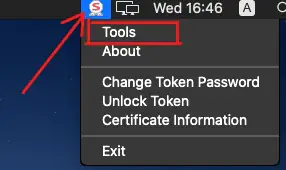
1. Click the SafeNet icon in the notification bar and then click the Tools button.
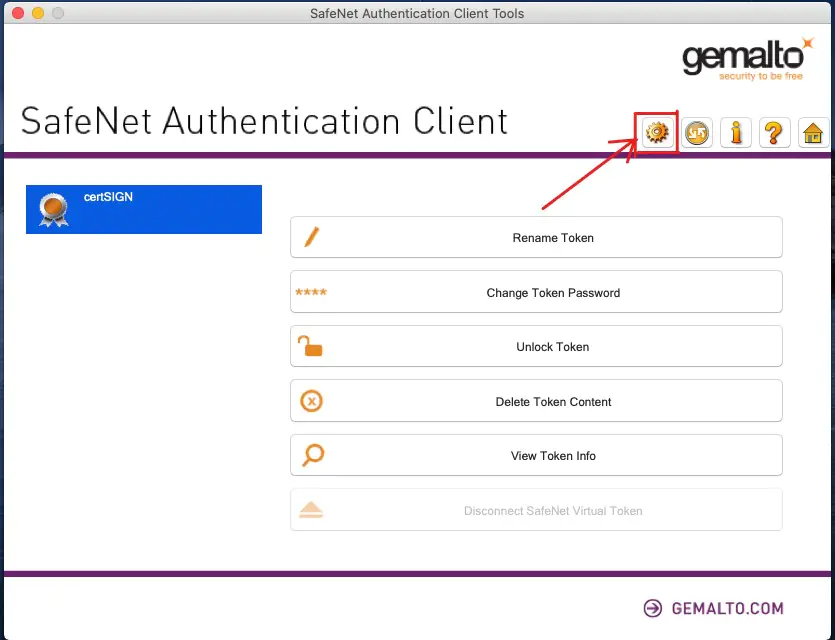
2. Click on the Advanced View icon marked in red in the image below.
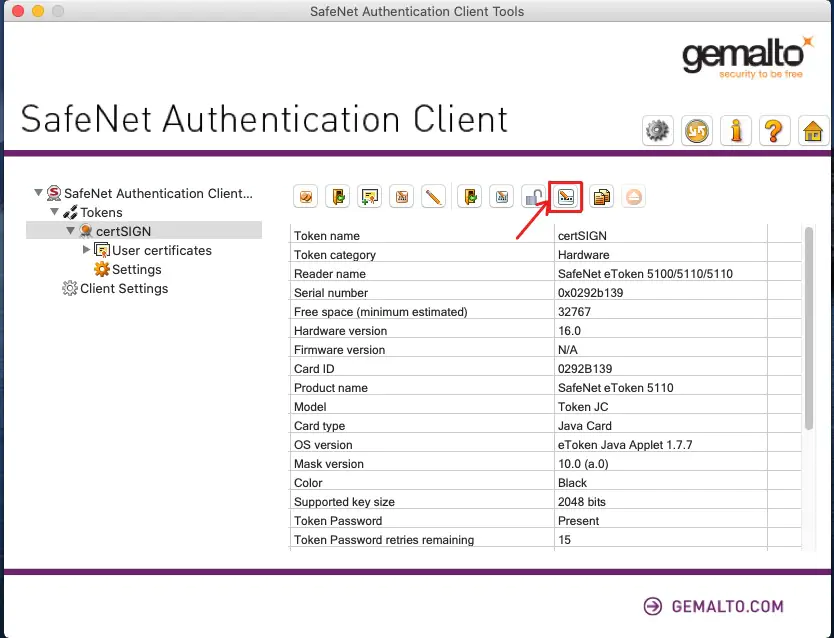
3. Select the Set User Password icon (marked in red in the image below).
4. In the window that opens, enter the PUK code of the device in the Enter the Administrator Password field. The PUK code is printed in the letter received from certSIGN (see example here).
Warning! Your device will permanently lock if you enter the wrong PUK code 3 consecutive times. In this situation, you will need to buy a new token and a new digital certificate.

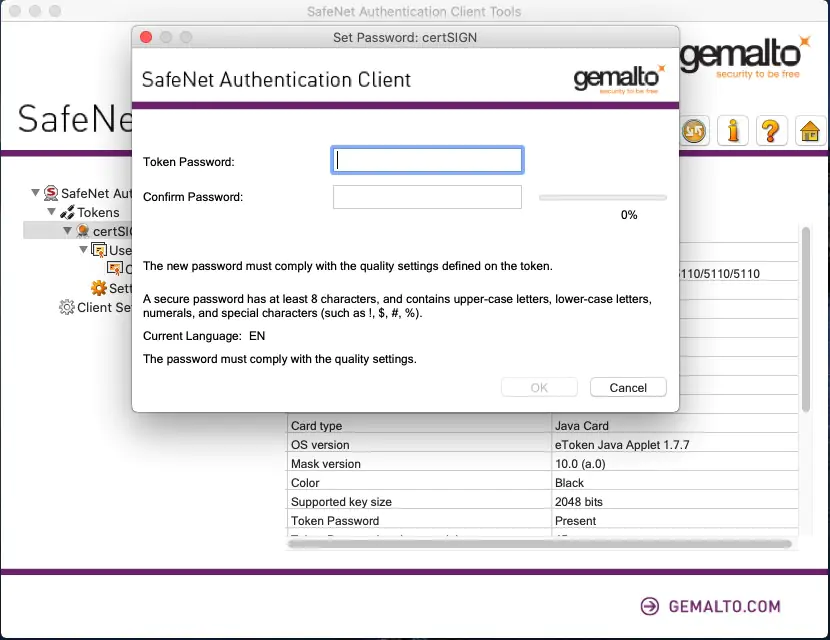
5. In the next window, type the new password and press OK.
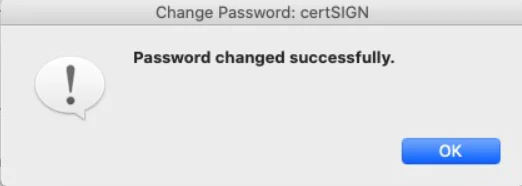
6. You will receive a confirmation of the password change. Press OK.